Your Workflow for the Day
Explore, Plan, Implement, Verify
You now know how to write good prompts and how AI behaves. The last piece is a simple workflow that keeps you on track, especially when you're building something bigger than a single prompt can handle.
Every time you work with AI, follow these four steps:
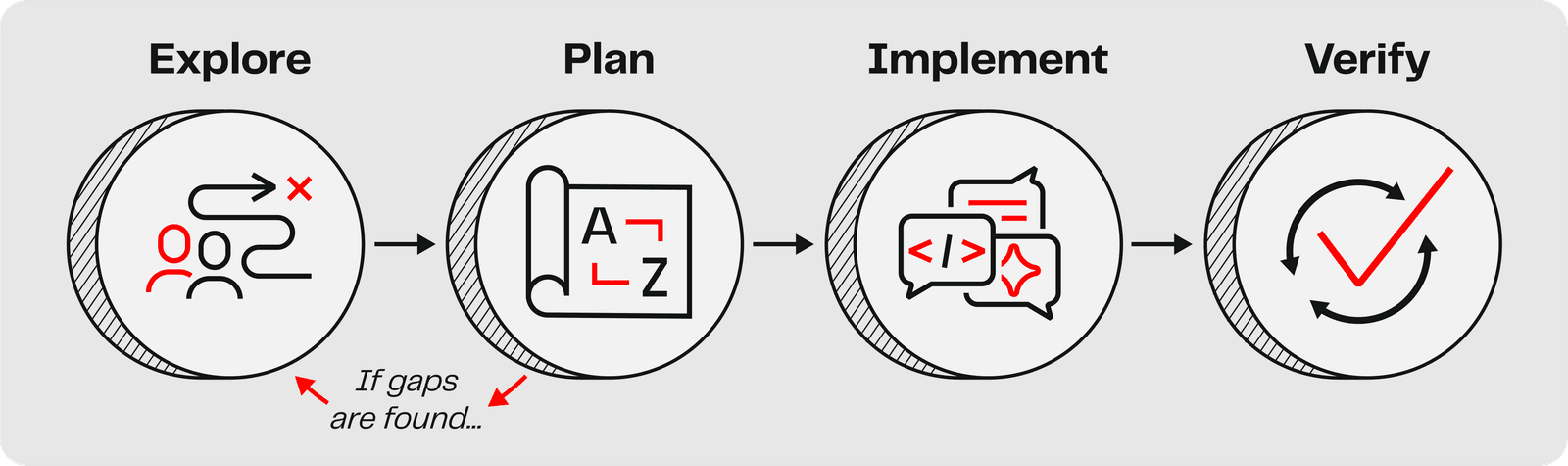
1. Explore
Before you start building, understand who you're building for. What do your users need? What problems are they trying to solve? What would make their life easier? This is the discovery step. You're building enough empathy with your user that you could write a story from their perspective.
You can use AI to help with this exploration:
What information does a contracting officer need when evaluating a
potential vendor for a federal contract? What data sources exist
for vendor due diligence, and what specific fields or checks are
most important for determining eligibility and past performance?
2. Plan
Describe what you want to build as a user story with acceptance criteria. This is where the story format from the last section pays off. Your story IS your plan.
Example (just for reference; you don't need to do anything with this):
As a contracting officer researching a potential vendor,
I want a profile card showing total federal award amount and top agencies
so that I can quickly assess their federal contracting footprint.

Given USAspending data shows Lockheed Martin with $49.9B in total awards,
when I view the vendor profile,
then I see the total formatted as "$49.9B" with a breakdown by agency.

Given USAspending data shows the vendor's business type is "other_than_small_business,"
when I view the vendor profile,
then I see a "Large Business" indicator badge, not a small business designation.
3. Implement
Tell AI to go ahead and build it. You can send the whole story as your prompt. AI will use both the story and the acceptance criteria to guide what it builds.
Example (just for reference; you don't need to do anything with this):
Build this as a clean, mobile-friendly interactive prototype.
4. Verify
Walk through each acceptance criterion. Pass or fail. No guessing.
- Vendor profile shows total award amount from USAspending? Check.
- Top awarding agencies listed with dollar amounts? Check.
- Business type indicator matches the data? Check.
- Missing something? Tell AI exactly which criterion failed: "The award amount is showing raw numbers without currency formatting. Display it as '$49.9B' not '49897873173.51'."
Then the cycle repeats. Verify reveals a new thing to fix → you plan it → AI implements → you verify again. The acceptance criteria you wrote in Step 2 are the same checklist you use in Step 4.
Right-Sizing Your Prompts
Not everything needs a four-step process. Match the complexity of your prompt to the complexity of the task.
- Small ask → just say it in plain English: "Change the background color to light blue"
- Medium ask → write a user story with acceptance criteria: "As a traveler, I want a packing checklist so that I don't forget essential items. Given the list has 8 items, when I view it, then items are organized by category (clothing, toiletries, documents) with checkboxes."
- Big ask → break it into smaller stories first, then use the workflow for each one
You'll develop a feel for this as the day goes on. When in doubt, write a story. If the acceptance criteria keep growing and you can't list them all, that's your signal to break the task into smaller pieces.
Your First Cycle Together
Mob Session | ~5 minutes total | Gather around one screen. One person drives, everyone else navigates.
New to mobbing? The whole team gathers around one screen. One person is the "driver" (hands on the keyboard) while everyone else "navigates" (guiding what to do, watching for mistakes, thinking ahead). You'll rotate who drives throughout the day.
Start a new conversation in your AI chat tool, then walk through the first three steps of the Explore → Plan → Implement → Verify cycle together:
- Explore (~1 min): Ask AI:
What information does a contracting officer need when evaluating a potential vendor for a federal contract? What data sources exist for vendor due diligence, and what specific fields or checks are most important for determining eligibility and past performance? -
Plan (~3 min): As a team, pick one thing from AI's answer. Write a quick user story with 1-2 acceptance criteria around it. Quick refresher on the format:
As a ___, I want ___ so that ___. Given ___, when ___, then ___. -
Implement (~1 min): The driver sends the story as the prompt. Your AI assistant will start building.
Don't wait for it to finish. Your assistant may take a few minutes to implement what you asked for. Keep moving through the curriculum to the next page. When you get to your Challenge, come back and Verify: walk through each acceptance criterion against what your assistant built. Pass or fail? Did the acceptance criteria help you spot anything you might have missed at first glance?
In Your AI Assistant
The driver opens claude.ai. Share the screen so the whole team can see the conversation.
The driver opens gemini.google.com. Share the screen so the whole team can see the conversation.
Tip: You have access to Canvas, which lets you preview and iterate on your prototype live in the browser. If Canvas doesn't open automatically, click the + button below the prompt box and select Canvas.
In Your AI Assistant
If you didn't get a visual prototype: AI tools respond differently each time, even from the same prompt. Try these in order:
- Look for a Preview, Play, or Run button in your tool's interface. Claude.ai and Gemini can both render live previews, but you may need to click a button to switch from code view to preview. Some tools require you to be logged in.
- Look for Canvas mode. In Gemini, click the + button below the prompt box and select Canvas for a side-by-side view where you chat on one side and see your prototype on the other.
- Did AI give you code to install, a download link, or setup instructions instead of a visual page? Ask: "I don't want to download or install anything. Can you turn this into an interactive prototype I can see and use right here in our conversation?"
- Got HTML code but no live preview? Click Download code above the code block, or copy the code into a plain text editor (like Notepad or TextEdit), save it with a
.htmlextension, and open it in your browser. - Still stuck? Start a new conversation, or switch to a teammate's machine. Don't spend too much time troubleshooting. You'll learn more about why AI responds differently each time in Section 4.
Key Insight
AI makes building easy. Knowing what to build is the hard part, and the part that matters. Explore → Plan → Implement → Verify keeps you focused on the outcome, not just the output. Without Explore and Plan, you'll generate something fast that nobody needs. With them, you build something that actually solves a real problem for a real person. That's the difference between producing software and producing impact.